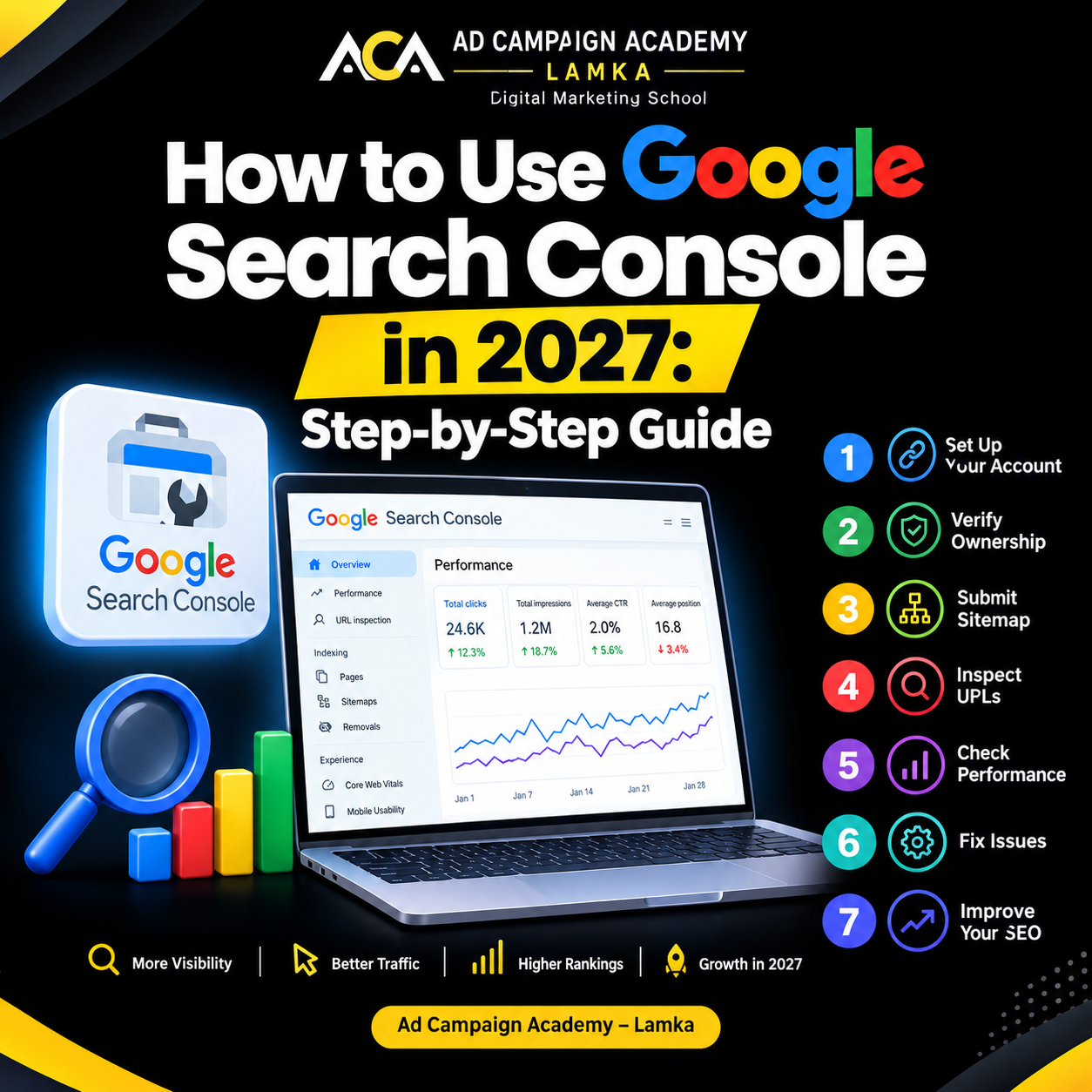
SEO Guide
Beginner Friendly
2027 Blog Post
By Ad Campaign Academy – Lamka | Digital Marketing Education
Introduction
Google Search Console (GSC) is a free tool from Google that helps website owners, bloggers, SEO professionals, and digital marketers understand how their websites perform in Google Search. It provides information about search impressions, clicks, keyword queries, indexing issues, and technical SEO problems. Tech SEO
Whether you run a personal blog, business website, educational website, or e-commerce store, learning Google Search Console can help you identify opportunities to improve your organic search visibility.
In this guide, you will learn how Google Search Console works, how to set it up, how to submit your sitemap, how to monitor keywords, and how to use its reports to improve your SEO strategy in 2027. Google Search Console guide 2027
What Is Google Search Console?
Google Search Console is a free website monitoring and SEO tool that helps you understand how Google discovers, crawls, indexes, and displays your website in search results.
It helps answer important questions:
- Are your blog posts appearing on Google?
- Which keywords bring visitors to your website?
- How many people click your search results?
- Are any pages experiencing indexing problems?
- Which pages need SEO improvements?
Important: Google Search Console does not automatically improve your rankings. Instead, it provides data and reports that help you make better SEO decisions.
Step-by-step: How Google Search Console works

Step 1: Open Google Search Console
Visit Google Search Console and sign in with your Google account.
Select Add property and choose a Domain property or URL-prefix property. A Domain property covers the domain and its subdomains across HTTP and HTTPS; URL-prefix properties cover the specified URL prefix.
Search Console Help

Step 2: Verify website ownership
Google needs to confirm that you control the website.
- Domain property: Usually add the TXT record provided by Google to your domain’s DNS settings.
- URL-prefix property: Choose an available method such as an HTML tag, HTML file, Google Analytics, or another supported option.
Follow the instructions shown for your website and click Verify.
Search Console Help
+1

Step 3: Submit your XML sitemap
A sitemap helps Google discover the important URLs on your website.
- Open your website’s sitemap, often available at
/sitemap.xmlor through a sitemap index. - In Search Console, open Sitemaps.
- Enter the sitemap path.
- Click Submit.
- Check the status for processing errors.
For WordPress sites using an SEO plugin, the sitemap may already be generated automatically. Check the actual sitemap URL before submitting it. Submission helps discovery but does not guarantee indexing.
Google for Developers

Step 4: Inspect your blog post URL
After publishing a blog post:
- Copy the full URL of the article.
- Paste it into the URL Inspection search bar.
- Review the current indexing status.
- If appropriate, click Test Live URL.
- If the page is accessible and eligible for indexing, click Request Indexing.
Google Search Console guide 2027
This requests a new crawl; it does not guarantee that Google will index or rank the article.

Step 5: Monitor your search performance
Open Performance → Search results to understand how your blog performs in Google Search.
Review four key metrics:
- Clicks: Visits generated by clicks from Google Search.
- Impressions: How often your search result was shown.
- CTR: The percentage of impressions that generated clicks.
- Average position: The average position of your topmost result across relevant impressions.
Use the Queries tab to find search terms and the Pages tab to identify your strongest and weakest articles.

Step 6: Fix indexing and technical SEO issues
Open the Page indexing report and investigate the reasons pages are not indexed.
Common issues include:
- Pages blocked by a
noindexdirective. - URLs blocked by robots.txt.
- Duplicate pages or incorrect canonical URLs.
- Server errors and broken URLs.
- Pages Google has not discovered or crawled yet.
Not every non-indexed URL is an error. Fix problems that affect pages you actually want in Google Search, then inspect the relevant URLs again.

Step 7: Improve website experience
Review the reports available for your property, including Core Web Vitals, to understand real-user loading performance, responsiveness, and visual stability.
Improve mobile usability, page speed, navigation, internal linking, and content readability. Make sure your blog is useful on mobile devices and that important content is accessible to search engines.
How to use Google Search Console to improve blog SEO
Once your website starts collecting data, use this simple optimization process:
| What you find | What you should do |
|---|---|
| High impressions, low CTR | Review your title tag and meta description for relevance and clarity. |
| Keywords ranking around positions 8–20 | Improve content depth, search intent, internal links, and topical relevance. |
| Many clicks on one blog post | Identify related topics and create useful supporting articles. |
| Important pages not indexed | Inspect the URLs and resolve the specific indexing issue. |
| Falling clicks over time | Compare dates, queries, and pages to determine what changed before editing. |
These are diagnostic starting points, not guaranteed ranking formulas. Evaluate each page based on its search intent, competition, and actual performance data.
Practical example for a blog post in 2027
Suppose you publish an article titled What Is Technical SEO? Step-by-Step Guide on your website.
- Publish the article with a clear title, helpful content, descriptive headings, and relevant internal links.
- Check that the page is accessible and included in your sitemap.
- Use URL Inspection to check its status and request indexing if appropriate.
- After data becomes available, review its queries, impressions, clicks, CTR, and average position.
- Update the article when you identify meaningful gaps, outdated information, or opportunities to answer users’ questions better.
Remember that crawling, indexing, and ranking are different processes. Google may discover and crawl a page without indexing it, and an indexed page is not guaranteed to rank highly.
Frequently asked questions (FAQs)
1. Is Google Search Console free?
Yes. Google Search Console is a free service for monitoring your website’s performance in Google Search.
2. How long does Google take to index a blog post?
It can take days or longer. Requesting indexing does not guarantee inclusion, and submitting a sitemap does not guarantee immediate crawling.
3. Does Google Search Console help improve rankings?
It provides search performance and technical information that helps you identify and prioritize SEO improvements. It does not directly guarantee better rankings.
4. Can beginners use Google Search Console?
Yes. Beginners can start with sitemap submission, URL Inspection, the Performance report, and Page indexing.
5. How often should bloggers check Search Console?
Check weekly for search performance trends and indexing problems. For new websites, review important new pages after publishing and allow time for Google to process them.
6. Is Google Search Console enough for SEO?
It is an essential SEO tool, but it does not replace keyword research, content planning, competitor analysis, website analytics, or a thorough technical SEO audit.